Week 12: Demo UI Launch and Smarter Error Recovery
Week 12 was about getting the demo UI from week 11 actually working properly and adding some steps to handle when things break (which they still do, a lot unfortunately 😭). The big addition is a repair button that can analyze crash logs and attempt to fix the code automatically. Also split the refinement process (after full sketch generation) into two steps and added memory so the agent doesn’t forget what you were trying to do.
Google Summer of Code Demo
We did a presentation for GSoC this week showing the whole system in action:
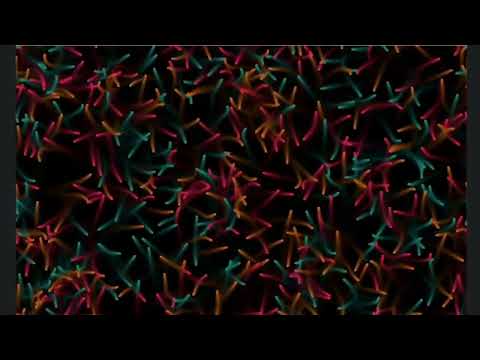
The video shows the basic workflow - type a description, get particle behaviors, refine them with natural language, and now automatically fix them when they crash. The demo went pretty well, though we definitely had some sketches that wouldn’t generate properly and had to skip those.
The Repair Button
Got automatic error recovery working. When a sketch crashes (which happens more than I’d like), the UI captures the error and lights up a “Repair” button. Click it and the system sends the broken code plus the error logs to the LLM to figure out what went wrong.
The repair prompt includes all the common Taichi crashes we’ve been collecting. Like that annoying “Return inside non-static if” error that happens constantly - the LLM now knows to restructure the function with a single return at the end. It works maybe 60-70% of the time, which is better than nothing.
Conversation Memory
Added a ConversationManager that remembers what you asked for in previous refinements. Before this, every refinement was starting from scratch - the agent had no idea what you’d asked for 30 seconds ago.
Now each refinement or repair gets logged:
- What you asked for
- What changed
- Whether it worked
- Any errors that happened
So when you ask to “make the particles blue” and then “make them move faster,” the system knows you want both changes, not just the latest one. The manager keeps the last 10 interactions or so before pruning to stay under token limits.
Two-Step Refinement
Split the refinement process into two steps after the full sketch generation. I found this to be incredibly beneficial when trying to generate too complex of a behavior upfront. Anything with drawing, it had a really difficult time understanding where to place helper functions and use them along with the experts so this was a way of managing this.
Step 1: Analysis
First agent just looks at the code and figures out what needs fixing. It compares against the exemplar sketches (slime, boids, particle life) along with some Taichi and Tölvera code examples and makes a plan. No code changes yet, just figuring out what’s wrong and what to do about it.
Step 2: Implementation
Second agent gets the plan and actually rewrites the code. It has access to all the Taichi patterns and knows how to avoid the common crashes along with the complete sketch.
This works better than trying to analyze and fix everything in one shot. The analysis agent can focus on the big picture without worrying about syntax, and the implementation agent just follows the plan. Still not perfect but the success rate is higher.
Other Fixes
Error Logging
Fixed the error output so you can actually copy error messages from the logs now. Before, the terminal control characters were making everything unreadable. Now errors are captured cleanly and stored for the repair function.
Diff Logic
The diff highlighting was totally broken. It was accumulating changes from every refinement instead of just showing what changed in the last one. Fixed it so each refinement shows a clean diff against the previous version only. The green highlighting now actually shows what just changed, not everything that’s ever been modified.
Implementation Notes
The repair button works by monitoring the sketch subprocess - when stderr gets data, we check for crashes and enable the button. The conversation manager hooks into the refiner to log everything automatically. The two-step process uses pydantic-ai’s structured outputs so the agents can actually communicate reliably.
There’s still a lot of hacky code in there from all the iterations. The error detection is basically regex patterns, the conversation manager has some weird state management, and there are probably three different ways to do the same thing scattered throughout the codebase.
Next Steps
Need to do a massive cleanup:
- Dead code removal - There’s so much unused code from previous attempts. Template system remnants, old synthesis approaches, multiple versions of the same functions
- Consolidate the prompts - We have prompts scattered everywhere, some in files, some inline, some dynamically generated (already started and almost finished with this)
- Fix the state management - The state system is a mess with multiple ways to create and access states
- Better error patterns - The regex-based error detection needs to be replaced with something more robust
- Documentation - Most of the new code has minimal or no documentation besides what I have here in the blog. I’ll be documenting this and cleaning up code.
Running the Demo
If you want to try it:
# Install everything
poetry install

# Set your API key (Gemini works best)
export GEMINI_API_KEY=your_key_here

# Run the UI
poetry run python examples/tolvera_textual_ui.py
The UI walks you through everything. Type a description, generate a sketch, refine it, and hit repair when it crashes. F2 will walk you through a tutorial which should help get you started! It’s still pretty fragile but when it works it’s nice to see particles doing what you asked for.
Fair warning: complex behaviors are still hit-or-miss. Simple stuff like “particles fall with gravity” works reliably. “Cellular automaton with evolutionary dynamics” probably won’t. But the repair button helps when things break.
Code is in here and the UI is examples/tolvera_textual_ui.py. Lots of cleanup needed but it’s functional.